How to Use an HTVRONT Heat Press
Here’s how to use an HTVRONT heat press: match temperature, time, and pressure to your transfer, flatten the garment, and run the press cycle. Peel the carrier hot, warm, or cold as directed by the transfer supplier.
On this page (9 sections)
- How to use an HTVRONT heat press step by step
- How should you set up the press and shirt?
- What temperature, time, and peel method should you use?
- How do you start an HTVRONT auto heat press?
- How do you use the HTVRONT Auto Heat Press 2?
- How do you use the HTVRONT 15x15 Heat Press?
- How do you fix lifting, uneven transfers, or scorch marks?
- How should you clean and store the press?
- Which HTVRONT press should you choose?
To use an HTVRONT heat press, set the temperature, time, and pressure for your transfer, place the design on a flat garment, and complete the pressing cycle. Follow the transfer supplier’s hot, warm, or cold peel instructions before removing the carrier.
Automatic models close and release the project for you. The handheld model needs you to hold the press steady and apply pressure throughout the timed press.
How to use an HTVRONT heat press step by step
Start with the transfer instructions and your model’s manual beside the machine. The transfer instructions set the pressing recipe; the manual explains how your press applies it.
- Place the machine on a stable, heat-safe surface with room to load and unload.
- Check that the garment and transfer are compatible.
- Set the required temperature, time, and pressure where adjustable.
- Wait for the press to reach the selected temperature.
- Remove lint, flatten the garment, and position the transfer.
- Start the automatic cycle or lower the handheld press without sliding it.
- Remove the carrier at the specified peel temperature and complete any required finishing press.
Keep hands clear of the heated plate and moving parts. Stay nearby throughout the cycle, including when using automatic release.
For more detail on loading different press styles, see how to use a heat press.
How should you set up the press and shirt?
Give the press a firm work surface and clear loading space. A table that rocks under pressure makes a poor base, especially for a handheld machine.
Check the manual’s electrical requirements before plugging in. Route the cord away from the hot plate, drawer path, and areas where it could catch while you move a shirt.
For a handheld press, use a suitable heat-press mat and keep the safety base within reach. A soft ironing board can flex beneath the design and make even pressure harder to maintain.
Remove lint before positioning the transfer, especially for sublimation, where stray fibers can leave visible marks. Pre-press only as directed for your material to remove moisture or wrinkles.
Keep collars, seams, pockets, and zippers outside the contact area. Avoid trapping a fold from the back of the shirt beneath the design.
Compare heat press machine types and sizes if your workspace cannot comfortably hold the machine and an open drawer.
What temperature, time, and peel method should you use?
Use the transfer supplier’s complete recipe, including pressure and peel timing. A preset is a shortcut for entering settings, not proof that those settings suit your material.
Check fabric compatibility before applying heat. A transfer intended for cotton may call for conditions that a different garment cannot tolerate.
Let the press reach its target before loading the first project. Don't raise the temperature just to shorten the cycle, since that can scorch fabric or damage the transfer.
Hot, warm, and cold peel describe when to remove the carrier. Peeling too soon can pull up a design that needed more cooling.
Our heat press temperature and time guide explains the main material differences. Use your transfer’s directions for the final settings.
How to use an HTVRONT heat press for HTV
For HTV, prepare and orient the design as the vinyl brand directs. Many cut-vinyl projects require mirroring before cutting, but check your material before doing so.
Remove unwanted vinyl before pressing and keep the design still during contact. Use a protective cover only as directed, since an added layer can change heat delivery.
The HTVRONT 12x10 Pressure Display Press suits occasional shirt makers who want a portable machine and visible pressure feedback. Its 12 x 10 in plate and dual handles help you cover a flat design while controlling your grip.
Apply steady pressure through both handles without rocking the press. The display helps you repeat your effort, but you still supply the force.
Skip this model if holding pressure is difficult or you plan long batches. Our Cricut EasyPress SE vs HTVRONT 12x10 comparison covers the handheld choice in more detail.
How do you start an HTVRONT auto heat press?
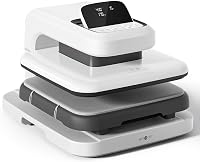
On the HTVRONT Auto Heat Press 15x15, load the board, slide it into position, and press “R” after setting the cycle. Wait for automatic release before reaching into the pressing area.
Check that loose fabric cannot catch as the board moves. Align the whole transfer beneath the plate rather than centering only the shirt.
This model suits crafters who want automatic closing for flat shirts and totes. It adjusts to project thickness up to 1 in and includes fast, custom, and automatic modes.
Automatic thickness adjustment is different from choosing a pressure setting yourself. Skip it if your work depends on direct pressure adjustment; the HTVRONT Auto Heat Press 2 review explains that alternative.
For repeated projects, confirm the first garment’s result before continuing the batch. Keep each blank, transfer, and placement consistent.
How do you use the HTVRONT Auto Heat Press 2?
Set temperature, time, and pressure, then load the project and press “R.” The Auto Heat Press 2 presses automatically, sounds a completion signal, and releases the material.
It offers pressure adjustment up to 170 lb and clearance for projects up to 1.77 in thick. Those limits describe capacity, not the settings every project needs.
Choose this model for DTF work that calls for pressure adjustment or for thicker garments that need extra clearance. Keep hoodie seams and pockets away from the transfer even when the garment fits beneath the plate.
Skip it if you mainly make small designs and need a machine you can easily put away. Its 15 x 15 in plate is useful for larger shirt graphics, but your table also needs loading space.
Adjust the screen angle so you can read settings without leaning toward the pressing area.
How do you use the HTVRONT 15x15 Heat Press?
Set the cycle, load the pulled-out drawer, and start pressing with the model’s controls. This pink automatic model senses item thickness up to 1 in and releases after pressing.
Choose it for repeated flat apparel projects when you want automatic operation. Its 4 fast modes, 2 custom modes, and automatic mode help reduce repeated setting entry.
Save a custom cycle only after confirming the transfer result. Recheck it when changing fabric or transfer type, even if the design looks similar.
Skip this model if you need direct pressure adjustment or handheld storage convenience. Choose among these presses by workflow rather than color; HTVRONT vs VEVOR heat presses also compares other machine styles.
How do you fix lifting, uneven transfers, or scorch marks?
Check contact, settings, and peel timing before changing anything. Several faults can look alike, so increasing heat by default can make the problem worse.
- One edge lifts: Look for a seam, wrinkle, or plate edge beneath that part of the design.
- The design lifts during peeling: Stop and check whether the carrier needed more cooling.
- A large area fails to bond: Confirm the transfer’s temperature, pressure, and full pressing time.
- Fabric shows scorch marks: Recheck fabric compatibility and avoid extra heat cycles without guidance.
- A sublimation image looks doubled: Keep the transfer from shifting during placement and removal.
Follow the supplier’s recovery instructions before pressing again. Some transfers need a covered finishing press, while others require a different correction.
For large artwork, check what size heat press you need before relying on overlapping presses. Repeatedly heating part of a design can affect its finish.
How should you clean and store the press?
Switch off, unplug, and let the press cool fully before cleaning or storage. Follow the manual’s cleaning method for the plate coating.
Avoid metal scrapers and abrasive pads. Don't spray cleaner into controls, vents, or drawer parts.
Keep the pressing mat and garment support free of scraps and adhesive residue. Store the handheld model on its safety base, and leave space around any machine while it cools.
The automatic models described here and the handheld model have 15-minute inactivity shutoff features. Use those as a backup and switch off deliberately when finished.
Which HTVRONT press should you choose?
Choose adjustable pressure for varied transfer work, automatic closing for repeated shirts, or handheld control for occasional projects. Measure your largest design and available workspace before deciding.
Pick the Auto Heat Press 2 for pressure control and thicker garments. Choose the original Auto Heat Press or pink 15x15 model for routine flat apparel with automatic release.
Pick the 12x10 Pressure Display Press when portability matters and you can comfortably hold steady pressure. Skip handheld pressing if that effort would limit how much you can make.
Knowing how to use an HTVRONT heat press starts with matching the machine to your work, then matching each cycle to the transfer. For your next machine, compare heat presses for T-shirts; you can also browse the T-shirt press category.
Frequently asked questions
What temperature should I use on an HTVRONT heat press?
Use the temperature specified for your transfer and fabric combination; HTV, DTF, and sublimation need different settings, and even transfers of the same type can differ by brand. Let the press reach that temperature before starting, and use the matching time, pressure, and peel instructions.
How do you start an HTVRONT Auto Heat Press?
On the HTVRONT Auto Heat Press 15x15, set the temperature and timer, load the garment and transfer, then slide the board into position. Keep your hands clear and press the R button; the machine closes automatically and releases when the timer ends; stay nearby throughout the cycle.
Can you use an HTVRONT heat press for DTF transfers?
Yes, the HTVRONT Auto Heat Press 2 supports DTF projects and lets you adjust pressure. Match its settings to your transfer supplier’s instructions, including any required finishing press; keep seams outside the design area and follow the specified peel method before deciding whether the transfer needs further attention.
Why is my HTVRONT transfer lifting?
Lifting can come from uneven contact, incorrect settings, or peeling at the wrong temperature; check the transfer instructions and look for seams, wrinkles, or folds beneath the design. If lifting starts during peeling, stop and follow the supplier’s recovery steps rather than immediately increasing heat or pressure.