HTVRONT Heat Press vs Cricut AutoPress: Which Is Better? (October 2026)
For HTVRONT heat press vs Cricut AutoPress, choose HTVRONT Auto Heat Press 2 for direct pressure control and an adjustable screen, or Cricut AutoPress 2 for guided settings and a higher pressure ceiling. Match the press to your transfers, workspace and preferred controls.
On this page (10 sections)
- HTVRONT heat press vs Cricut AutoPress: what actually differs?
- Who should buy each press, and who should skip it?
- How should DTF, HTV and sublimation affect your choice?
- Will your designs and thick garments fit?
- How do the controls change daily use?
- How much workspace and electrical planning do you need?
- What should you do before the first full batch?
- Which common mistakes cause wasted transfers?
- How should you care for an automatic heat press?
- Which press should you choose for your next projects?
Choose HTVRONT Auto Heat Press 2 for direct control or Cricut AutoPress 2 for guided setup in the HTVRONT heat press vs Cricut AutoPress decision. HTVRONT suits crafters who already know their transfer settings; Cricut suits those who want help applying settings across different projects.
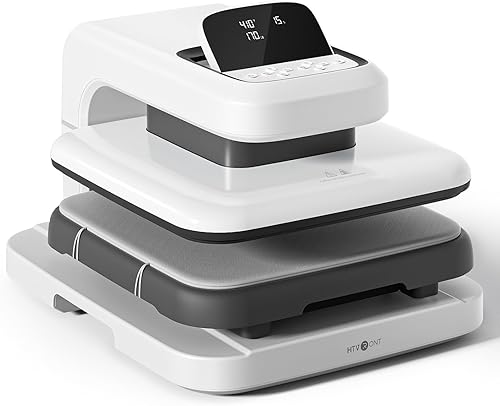
This comparison covers Cricut AutoPress 2 and both HTVRONT automatic models shown below. The original HTVRONT is worth considering for routine apparel work, but it doesn't offer the same pressure customization as Auto Heat Press 2.
If you're still deciding between automatic machines, our best auto heat presses guide covers more options.

HTVRONT heat press vs Cricut AutoPress: what actually differs?
Pressure range and control style separate the newer models more than pressing area or clearance. All 3 presses have a 15 x 15 in plate, while the 2 newer models share the same maximum project height in centimeters.
| Feature | HTVRONT Auto Heat Press 2 | Original HTVRONT Auto Heat Press | Cricut AutoPress 2 |
|---|---|---|---|
| Maximum adjustable pressure | Up to 170 lb | Automatic thickness adjustment | Up to 220 lb |
| Maximum project height | 4.5 cm (1.77 in) | 1 in | 4.5 cm (1.8 in) |
| Main controls | Pressure adjustment and tilting screen | 4 fast modes, 2 custom modes and auto mode | Control Pod, 4 customizable presets and optional Bluetooth settings |
| Automatic operation | R-button start and timed release | R-button start and timed release | Hands-free Auto Mode |
| Notable setup feature | 7 screen positions from 0 to 75 degrees | Slide-out loading board | Interactive Heat Guide and full-slide-out tray |
Cricut's higher pressure ceiling matters when a transfer requires a setting beyond HTVRONT's range. It isn't a reason to use more pressure than your material needs.
The clearance figures also deserve care. The newer presses both reach 4.5 cm, so Cricut's rounded inch measurement doesn't give it a practical height advantage.
Who should buy each press, and who should skip it?
Buy around your repeat projects, then consider the controls that will make those projects easier. A feature earns its place when you'll use it regularly.
HTVRONT heat press vs Cricut AutoPress for independent crafters
Choose HTVRONT Auto Heat Press 2 if you already work from transfer instructions and want to set pressure yourself. Its adjustable screen is useful when your bench height makes a fixed viewing angle awkward.
This model suits a crafter switching between garment types and transfer recipes without wanting phone-based settings to drive the workflow. Our HTVRONT Auto Heat Press 2 review looks more closely at that choice.
Skip it if your planned transfers need pressure beyond its maximum. Choose Cricut instead if step-by-step project guidance is the feature most likely to help you get started.
Cricut AutoPress 2 for crafters who want guidance
Choose Cricut AutoPress 2 if you want its interactive Heat Guide alongside adjustable pressure, temperature and time. It supports DTF, HTV including Puff Iron-On, Infusible Ink and sublimation materials.
Its optional mobile connection lets you send settings directly to the press. Before buying for that feature, check your device against Cricut's system requirements.
Skip it if you already use a small set of supplier-approved settings and have little interest in guided setup. More connected features won't improve a workflow that already meets your needs.
Original HTVRONT for repeat apparel projects
Consider the original HTVRONT when your work centers on shirts, totes and other projects within its thickness limit. Automatic pressing, release and saved modes cover the basic timed workflow.
Its thickness adjustment shouldn't be confused with the user-adjustable pressure on Auto Heat Press 2. If changing pressure is a firm requirement, choose one of the newer models.
Skip the original for bulky projects near the newer machines' height limit. Decide that before comparing modes, since a saved setting can't solve a clearance problem.
How should DTF, HTV and sublimation affect your choice?
Start with the transfer and blank requirements, because the press must meet those requirements together. A broad compatibility label doesn't make every transfer suitable for every fabric.
For DTF, check temperature, dwell time, pressure, peel timing and whether a finishing press is required. Our guide to heat presses for DTF transfers explains the workflow choices behind those instructions.
For HTV, confirm fabric compatibility before cutting a batch. Layering rules can differ, and specialty materials such as puff vinyl need their own pressing recipe.
For sublimation, choose a blank intended for the process and use the required protective materials. A press that reaches the target temperature can't make an unsuitable fabric or coating accept the transfer.
Both newer models reach up to 410°F, but that is a limit rather than a default setting. Use our heat press temperature and time guide to understand why each material needs its own recipe.
Don't choose by maximum pressure alone. Excess heat, time or pressure can damage a blank or change the finish just as surely as insufficient settings can weaken adhesion.
Will your designs and thick garments fit?
Measure your largest design and thickest project stack before choosing a press. Garment size alone doesn't tell you whether the transfer area is large enough.
A large sweatshirt with a small chest logo may fit easily. An oversized back graphic can exceed the plate even when the shirt itself is thin.
For designs that need a single full-area application, choose a plate large enough to cover the transfer. Repositioning can expose part of a design to heat again and complicate alignment.
Bulky garments need more than entry clearance. Seams, zippers, pockets and drawcords can keep the design area from lying flat, leaving uneven contact under the transfer.
Position raised details outside the pressing area where possible, following the machine and material instructions. Include any permitted pad or accessory when checking total stack height.
Our heat press size guide helps you match the design area to the projects you plan to make.
How do the controls change daily use?
HTVRONT emphasizes settings at the machine, while Cricut adds optional mobile settings and guided instructions. Choose the method you'll find easiest during a busy batch.
On HTVRONT Auto Heat Press 2, set the parameters and press the R button to begin. It beeps when the timer ends and releases the material automatically.
Cricut provides local control through the Control Pod, so a phone isn't required for ordinary operation. The optional integrated mobile experience needs a compatible device, Bluetooth, high-speed internet and Cricut Design Space.
Presets help with repeat work, but name or record them clearly. A setting saved for one transfer type shouldn't become your default for every material.
For batches, stage the next garment in a separate clear area while the cycle runs. Stay nearby, and keep loose fabric and tools away from the machine's moving parts.
Automatic pressing removes the need to hold the press closed. You still need to align designs, load garments, peel carriers correctly and inspect each finished piece.
How much workspace and electrical planning do you need?
Plan for the machine in use, including loading space, garment handling and safe access. The closed footprint is only part of the space a press needs.
HTVRONT Auto Heat Press 2 measures 20.9 x 17.1 x 13 in and weighs 21.54 kg. The original measures 20 x 12 x 16 in and weighs 40.3 lb.
Cricut AutoPress 2 measures 16.25 x 21.05 x 11.56 in. Allow room to use its full-slide-out tray without reaching across clutter or letting a garment drag on the floor.
Choose a stable, heat-suitable bench that supports the machine securely. Leave a clear place for finished items to cool before folding or stacking them.
HTVRONT Auto Heat Press 2 uses 120 volts and 1500 watts; the original also uses 120 volts. Check the manual and your electrical supply before setup, and follow the manufacturer's connection instructions.
Both HTVRONT models shut off after 15 minutes without operation. Cricut includes auto-off and an insulated safety base, but these features don't make a hot press safe to leave unattended.
Keep children and pets away from the work area. Follow Cricut's safety documentation and the instructions supplied with your chosen machine.
What should you do before the first full batch?
Make a sample with the actual blank and transfer before committing a batch. A saved recipe is useful only when it matches the materials you're using.
- Read the press manual and transfer instructions before heating the machine.
- Confirm the garment's fiber content or the blank's required coating.
- Prepare the surface as directed, including lint removal or pre-pressing when required.
- Align the design on a flat area without raised seams beneath it.
- Apply the specified temperature, time and pressure.
- Peel at the required stage, then complete any instructed finishing press.
Record the material name and settings with the result. That gives you a repeatable starting point when the same supplies come back onto the bench.
Allow the press to reach the selected temperature before starting. Don't assume a heating display means the machine is ready for the first transfer.
Peeling deserves the same attention as pressing. Hot, warm and cold peel instructions aren't interchangeable, and early peeling can disturb a transfer that hasn't set.
Our step-by-step heat press guide covers the wider process. For brand-specific controls, use the HTVRONT heat press instructions guide alongside your model's manual.
Which common mistakes cause wasted transfers?
Uneven placement and incorrect material settings can spoil a project even on an automatic press. Automation repeats the cycle you choose, including a wrong one.
Don't increase every setting when a transfer fails to adhere. Check the recipe, surface preparation, flatness and peel timing first, then change only what the transfer instructions support.
Avoid pressing over a pocket edge or thick seam beneath the design. The press can close normally while the transfer area receives uneven contact.
Protect the pressing surfaces as directed, especially when working with sublimation. Ink or adhesive residue can mark the next blank if it reaches an unprotected surface.
Don't reuse a contaminated protective sheet. Keep clean supplies separate from used sheets and carrier scraps so residue doesn't spread through a batch.
Inspect the first completed piece before continuing. A crooked design or wrong setting is easier to correct before it affects every garment.
How should you care for an automatic heat press?
Keep pressing surfaces clean and check moving parts before use. Follow the model's maintenance instructions rather than using a household cleaner by habit.
Turn the machine off, unplug it and let it cool before cleaning as directed. Remove adhesive residue only with a method approved for that pressing surface.
Check the tray or loading board for scraps that could obstruct movement. Keep cords clear of heat and motion, and inspect them for visible damage before starting.
Don't spray liquid into controls or add lubricant unless the manual directs it. If the press develops unusual movement or a control fault, stop and seek manufacturer guidance.
Let garments cool as instructed before packing them. Give finished items the transfer supplier's waiting period before washing, and pass those care instructions to anyone receiving the garment.
Which press should you choose for your next projects?
For HTVRONT heat press vs Cricut AutoPress, choose by the step you need help with most. HTVRONT Auto Heat Press 2 fits independent setup; Cricut AutoPress 2 fits guided settings and projects that need its higher pressure range.
Choose the original HTVRONT when routine apparel work fits its clearance and you don't need pressure customization. Skip all 3 if your designs require a larger uninterrupted pressing area.
Before ordering, write down your largest transfer, thickest project and 3 most common material recipes. Use that short list to confirm fit instead of choosing around features you'll rarely use.
If you're widening the search, our HTVRONT vs VEVOR comparison covers another brand matchup. For an apparel-focused next step, see our T-shirt press guide.
Frequently asked questions
Is the HTVRONT Auto Heat Press 2 better than Cricut AutoPress 2?
HTVRONT is the better fit for crafters who want direct pressure adjustment and a tilting screen without making mobile guidance a buying priority; Cricut suits buyers who want its interactive Heat Guide or need its higher pressure ceiling. Choose around your transfer requirements and daily workflow.
Do the HTVRONT and Cricut auto presses have the same plate size?
Yes, all 3 models compared here have a 15 x 15 in heat plate. Measure the transfer itself rather than the shirt size when deciding whether that area is enough; a large garment can fit a smaller design, while an oversized design may require a larger press.
Which press handles thicker projects?
HTVRONT Auto Heat Press 2 and Cricut AutoPress 2 both accommodate projects up to 4.5 cm thick; their different inch figures reflect rounding, so neither has a meaningful clearance advantage on that basis. The original HTVRONT has less clearance, with a 1 in project thickness limit.
Can you use either press for DTF transfers?
Yes, HTVRONT Auto Heat Press 2 and Cricut AutoPress 2 support DTF transfers. Use the transfer supplier's instructions for temperature, time, pressure, peeling and any finishing press; maximum machine pressure is a capacity limit, not a recommended setting for every design or garment.
Does Cricut AutoPress 2 need a phone?
No, you can use Cricut AutoPress 2 through its Control Pod, which has 4 customizable presets. The optional integrated mobile experience requires a compatible device, Bluetooth, high-speed internet and the Cricut Design Space mobile app; check compatibility before choosing the press mainly for those mobile features.